AnyRouter MCP with Claude Desktop
Add the AnyRouter MCP server to Claude Desktop with Connectors, or an mcp-remote bridge.
Add AnyRouter as a custom connector in Claude Desktop.
-
Open Settings → Connectors → Add custom connector. Set Name to
AnyRouterand Remote MCP server URL tohttps://anyrouter.dev/api/v1/mcp. Leave OAuth Client ID and Secret empty (Dynamic Client Registration).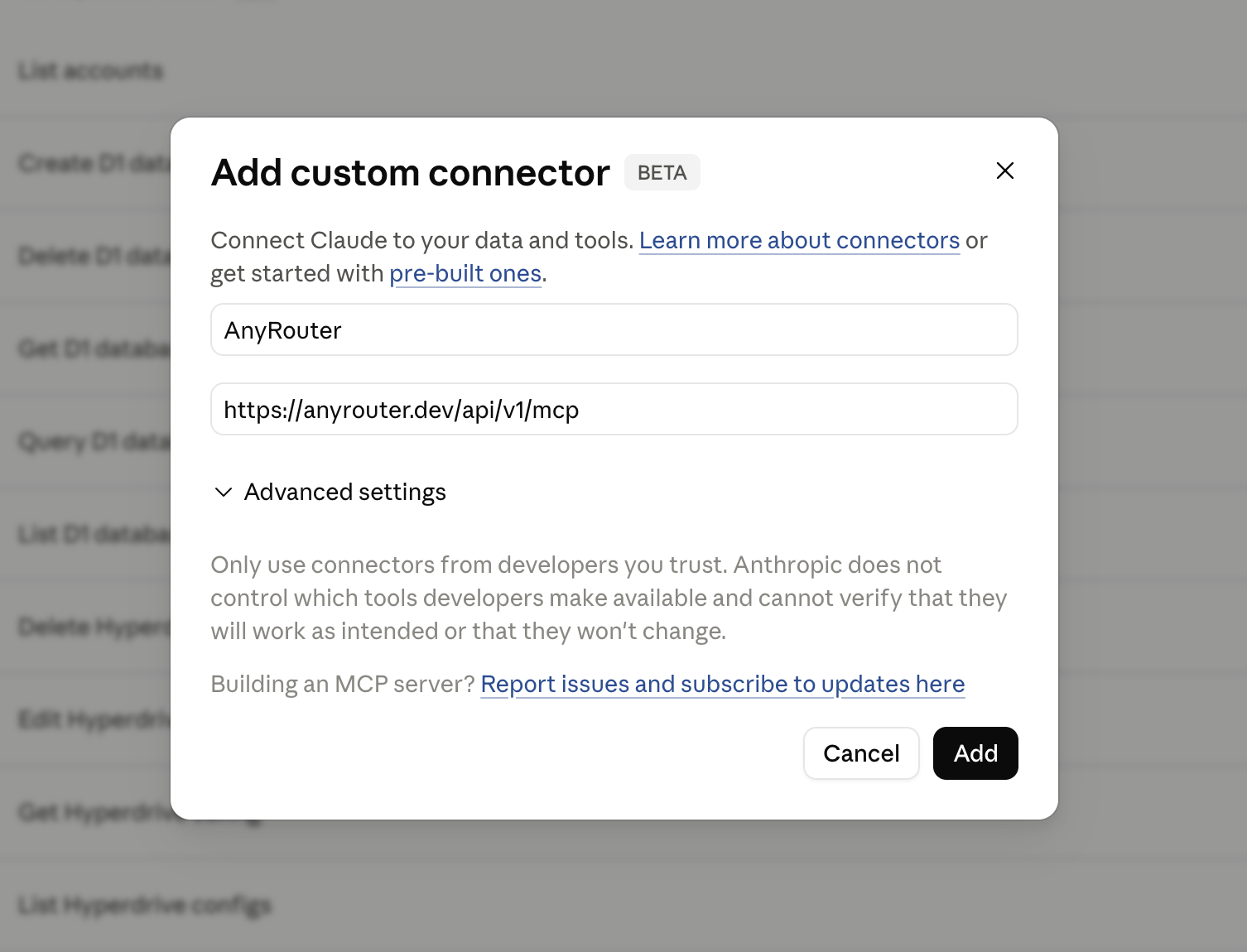
-
Click Add. In the browser consent page, pick a permission level and click Allow. Read-only (default) views credits, recent usage, and provider-key status; Standard also mints and rotates API keys. See scopes.
-
Check it: ask "How many AnyRouter credits do I have left?" Claude calls
get_credits. The tools available depend on the level you granted; see the MCP overview.
Without the Connectors UI, add a bridge in claude_desktop_config.json (Settings → Developer → Edit Config), then restart:
{
  "mcpServers": {
    "anyrouter": {
      "command": "npx",
      "args": ["-y", "mcp-remote", "https://anyrouter.dev/api/v1/mcp"]
    }
  }
}
Revoke
Revoke from the MCP dashboard. Re-adding the connector starts a new OAuth flow.
AnyRouter routes requests to third-party models. Models and outputs are provided as is, with no warranty; you use them at your own risk. Disclaimer